Guide
Import your prices from a CSV
BidSheet reads a supplier price sheet straight from a CSV (or TSV), figures out which columns are which, and matches each row to your catalog. You don't retype prices, and you don't have to format the file a specific way. Just bring a header row.
Two ways to import
Catalog price sheet
Update your material catalog in bulk when a supplier sends new pricing. Matched items get the new unit price and keep a full price history; unmatched rows can be created as new materials.
Materials → Import Prices
Per-job supplier quote
Load a quote against one bid and reconcile it line by line before anything is written. You see old price → new price per item, and unit mismatches are flagged rather than silently converted.
Open a bid → Import job prices…
Columns BidSheet recognizes
Only two columns are required. BidSheet auto-detects each one from your header row, so
the names below are just examples. If your sheet calls it Cost or
SKU, it still maps. You can fix any mapping by hand before importing.
| Column | What it sets | Required | Headers it auto-detects |
|---|---|---|---|
| Description | The material name (catalog) or quote line description | Required | name, material, item, description, product |
| Unit Price | The unit cost used for the item | Required | unit price, price, cost, rate, net price, amount |
| Unit | Unit of measure (LF, EA, TON…) on a job quote | Optional | unit, uom, u/m, units |
| Part Number | Helps match by manufacturer or catalog number | Optional | part number, part #, sku, model, item # |
| Supplier | Tags the source vendor on the price | Optional | supplier, vendor, manufacturer, distributor |
Start from a working file: this template already has the headers BidSheet expects, with
a few underground-utility rows as examples. Replace them with your own.
bidsheet-price-sheet-template.csv
Importing a price sheet, step by step
-
Export your price sheet as CSV
Save your supplier's pricing as a
.csvor.tsvfile, one material per row, with a header row naming the columns. -
Open the catalog import
In BidSheet, go to the Materials page and click Import Prices.
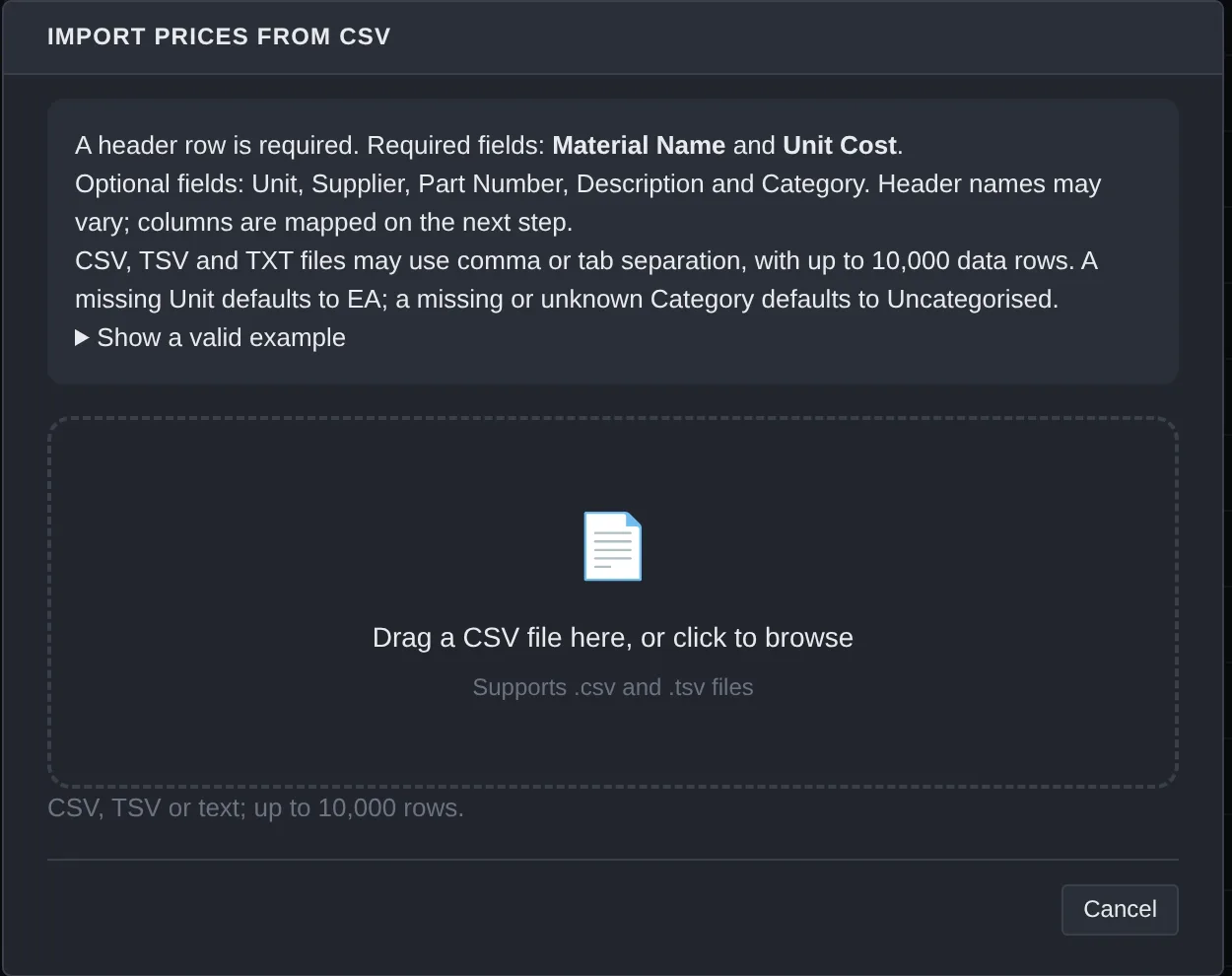
Materials · Import Prices -
Drop in the file and check the mapping
Drag the CSV onto the window, or click to browse. BidSheet picks the name, unit price, supplier, and part-number columns for you. Adjust any that look wrong.
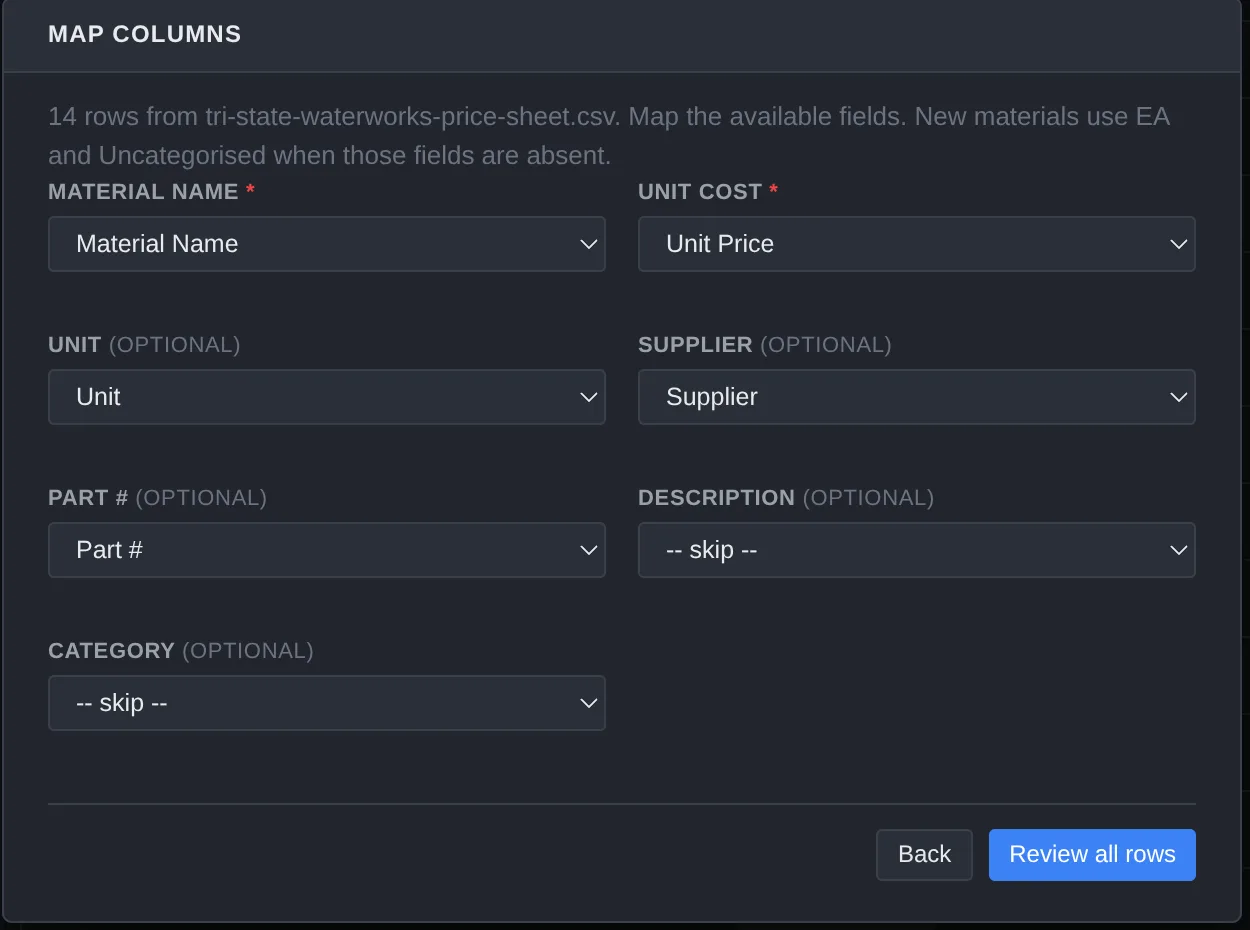
Map columns · 14 rows -
Review the matches and confirm
See how each row matched your catalog, then confirm. Matched items update their price and keep a price history; anything unmatched can be created as a new material.
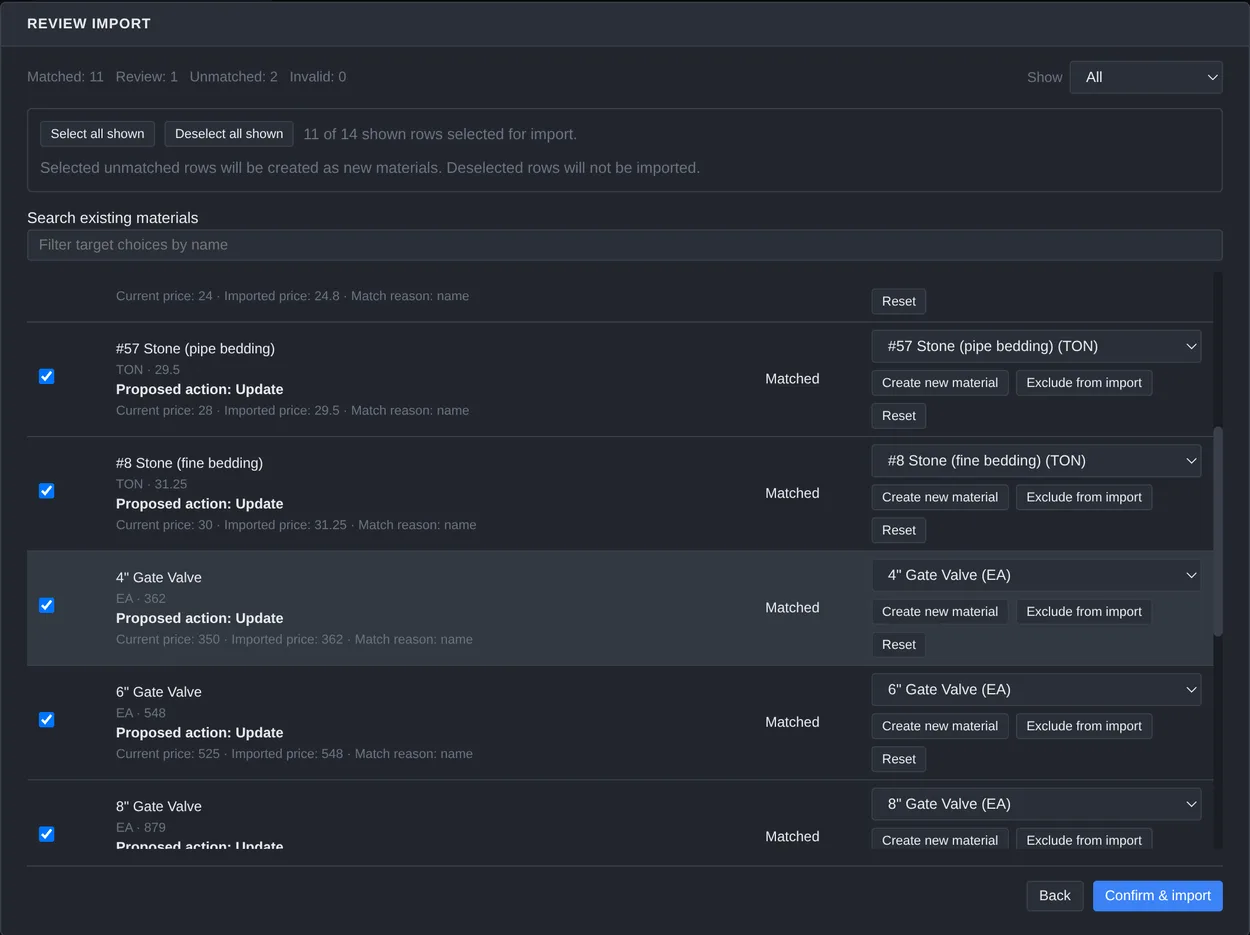
Review import · 11 matched, 1 to review, 2 unmatched
Good to know
- Headers auto-map. Common names like price, cost, SKU, or vendor are recognized automatically; you confirm or change them before importing.
- CSV and TSV both work. Comma- or tab-separated exports are fine.
- Fuzzy matching. Rows match your catalog by description even when the wording isn't identical, and BidSheet learns your supplier's wording over a few imports.
- Nothing is written silently. The per-job quote import always shows you old price → new price and lets you skip or confirm each line.
- Units are never auto-converted. A per-100-ft vs per-LF mismatch is flagged for you to confirm, not quietly changed.
Still have a question? See the FAQ, or download BidSheet and try it on your own price sheet.